
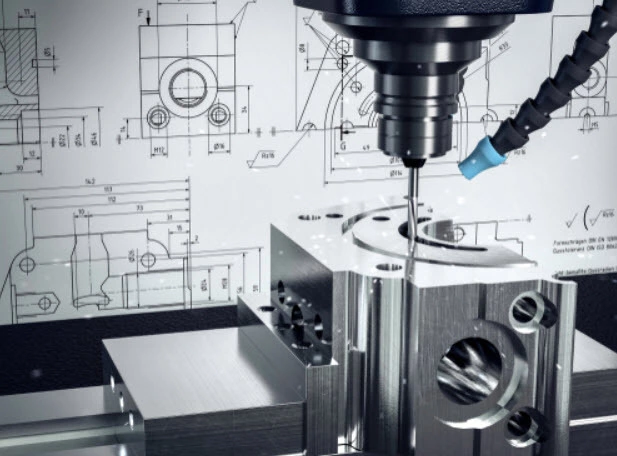
The transition from a digital concept to a physical, high-precision component is one of the most critical phases in modern manufacturing. At the heart of this transition lies the CAD (Computer-Aided Design) file. However, a common misconception among designers is that a visually complete 3D model is automatically a manufacturable one. In reality, the “intelligence” of your CNC CAD files determines whether a project results in a micron-perfect aerospace component or a pile of expensive scrap metal.
Poorly prepared files are the primary cause of friction in the B2B manufacturing chain. They lead to “broken” toolpaths, geometry that defies the laws of physics (such as perfectly square internal corners), and costly communication loops between the engineer and the CNC operator. To achieve efficiency, especially in high-stakes sectors like medical implants or robotics, you must design with “subtractive logic.”
1. Understanding CNC CAD Files for Machining
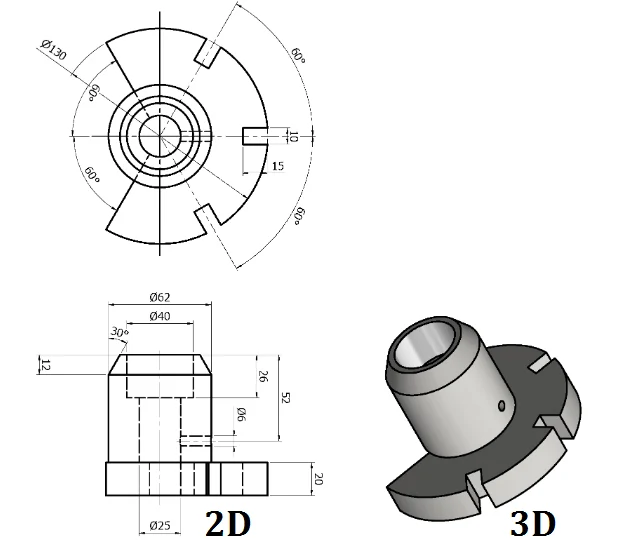
While standard CAD files used for rendering or 3D printing focus on surface aesthetics or additive layers, CNC CAD files must account for the physical constraints of a rotating cutting tool or a moving workpiece.
Common File Formats and Their Utility
Selecting the right format is the first step in ensuring data integrity across different CAM (Computer-Aided Manufacturing) platforms.
- STEP (.stp/.step): The industry gold standard. STEP files are “neutral” and retain the highest level of geometric data (NURBS). Unlike mesh files, they allow the CNC programmer to select specific edges and surfaces for toolpath generation.
- IGES (.igs): An older neutral format. While still used, it often suffers from “surface stitching” issues where the model arrives with open gaps or “exploded” faces.
- DXF (.dxf): Essential for 2D operations like waterjet, laser cutting, or simple CNC turning profiles. It is the language of “lines and arcs.”
- STL (.stl): While perfect for 3D printing, STL is generally not recommended for CNC milling. It describes surfaces as a mesh of triangles, making it difficult for CAM software to identify precise centers of holes or smooth curvatures.
2. Setting Up Your CNC CAD Files Correctly
Consistency is the enemy of error. Before a single line of geometry is drawn, the “environment” of the file must be standardized to prevent mechanical misalignment.
Units and Scaling: The 1:1 Imperative
Always design at a 1:1 scale. Machinists rely on the file to dictate the physical tool offset. If a file is scaled down to fit a screen, the resulting toolpath will be disastrous. Furthermore, ensure your export units match your design units. A 10mm hole exported in a system defaulted to inches will result in a 254mm disaster.
Coordinate Systems and Origins
In CNC machining, the “Work Home” (G54) is the anchor for every movement the machine makes.
- The Origin: Place your CAD origin at a logical, probe-able point—usually a fixed corner of the stock or the center of a symmetrical part.
- Orientation: Align the primary machining face with the Z-axis (up). This helps the programmer quickly visualize the setup on a 3-axis or 5-axis machine.
Layer Organization
A professional CAD file uses layers to separate functional data, allowing the machinist to toggle visibility for different operations.
- Layer 1: Final 3D Geometry (The “Master” model).
- Layer 2: 2D Wireframe (Essential for locating hole centers and boundary chains).
- Layer 3: Annotations and Dimensions (Information that shouldn’t be turned into a toolpath).
- Layer 4: Construction geometry or stock outlines.
3. Geometry Considerations in CNC CAD Files
CNC machining is subtractive; you are removing material using a tool that has a physical radius and a finite length. Your geometry must reflect this “physicality.”
Manifold Solids vs. Surface Models
A CNC machine needs to know what is “inside” and what is “outside.” Ensure your model is a Manifold Solid. Non-manifold geometry—where an edge is shared by three or more faces or where surfaces have zero thickness—will cause CAM software to crash or generate unpredictable tool gouges.
The Internal Radii Logic
The most common mistake is designing sharp internal vertical corners. Since CNC milling bits are cylindrical, they cannot cut a 90-degree internal corner.
- The Solution: Always add fillets to internal corners.
- Engineering Logic: If you plan to use a 6mm endmill, design your internal radius to be 3.5mm (not 3mm). This extra 0.5mm prevents the tool from “burying” itself in the corner, reducing heat and tool chatter.
Holes, Threads, and Pockets
- Tapped Holes: Do not model the physical 3D spiral of a thread. This bloats the file size and is useless for CAM. Instead, model the “Minor Diameter” (the hole size before tapping) and specify the thread pitch in a companion 2D drawing.
- Pocket Depth: Limit the depth of pockets to 4x the tool diameter. Deeper pockets require long, fragile tools that deflect, leading to “tapered” walls and poor surface finishes.
4. Defining Tolerances in CNC CAD Files
Precision is expensive. In the world of CNC, a tolerance of +/-0.01mm costs significantly more than +/-0.1mm due to slower feed rates and more frequent tool changes.
Modeling to “Nominal”
Most CNC machines have a natural “drift” based on thermal expansion and tool wear. To ensure fitment, model your parts to the mean or nominal dimension. If a shaft must be between 19.95mm and 19.98mm, model the CAD at 19.965mm.
Communicating Critical Dimensions
While the 3D CNC CAD files provide the geometry, a 2D PDF drawing is still mandatory for high-precision B2B work. Use the 2D drawing to define:
- GD&T (Geometric Dimensioning and Tolerancing): Such as parallelism, concentricity, and flatness.
- Surface Roughness: Specify Ra values (e.g., 1.6μm or 3.2μm) for critical mating surfaces.
5. Optimizing CNC CAD Files for Efficiency
An optimized file is a “clean” file. Efficiency in CAD preparation translates directly to reduced “Machine-on” time and lower costs.
De-featuring for Manufacturing
Small aesthetic fillets (less than 0.5mm) or tiny embossed text might look great in a render, but they can add hours to a CNC cycle. If a feature doesn’t serve a mechanical purpose, remove it. For external edges, use chamfers instead of fillets where possible; they are faster to machine with standard tools.
Using Parametric Features
Utilize parametric constraints. If a client requests a change in material thickness, a parametric model allows the entire geometry to update without breaking the “chain” of logic, making adjustments during the DFM (Design for Manufacturing) phase seamless.
6. Collaborating Effectively Using CNC CAD Files
The relationship between the design engineer and the CNC machinist should be a collaborative loop.
Adding Notes and Annotations
Most modern CAD formats allow for embedded metadata. Specify exactly which grade of material you require (e.g., Aluminum 6061-T6 vs. 7075). If a specific pocket is designed to be a “press fit” for a bearing, annotate this in the file notes to alert the operator.
Secure Sharing
Manufacturing IP is valuable. Use secure portals or encrypted cloud links. When sharing complex assemblies, use “Pack and Go” features to ensure all referenced sub-components and specialized font files (for engraving) are included in the package.
7. Common Mistakes in CNC CAD File Preparation
Avoid these frequent pitfalls to keep your production on schedule:
- Over-complicating 2D Profiles: Using splines instead of arcs. CNC controllers read arcs (G02/G03) much more smoothly than thousands of tiny linear segments (G01).
- Ignoring Tool Access: Designing a feature that a tool cannot physically reach without the spindle or holder hitting another part of the geometry.
- Missing Break-Edges: Submitting a file with perfectly sharp outer edges. Adding a small 0.2mm chamfer in the CAD saves the machinist from manual deburring.
- Sending Only 2D Drawings: While 2D drawings are vital for tolerances, they cannot be used directly for 3D toolpath generation. Always send the 3D model.
8. Tools and Software for CNC CAD File Verification
Before sending your file to the shop, use these tools to audit your work:
- Validation Tools: Software like SolidWorks or Rhino has “Check Entity” features to find open loops, tiny edges, or self-intersecting faces.
- File Conversion Tools: Use dedicated converters if moving between proprietary formats to ensure no data is lost in translation.
- Simulation Software: If you have access to CAM software (like Fusion 360), run a quick simulation. If the tool “gouges” the model in the software, it will do so in real life.
Conclusion
Properly prepared CNC CAD files are the foundation of manufacturing excellence. By moving away from “pretty” designs and toward “functional” geometry, you eliminate the hidden costs of machining: the setup delays, the broken taps, and the scrapped material.
As we move further into the era of Industry 4.0, where automated quoting and high-speed machining dominate, the quality of your digital data is your strongest competitive advantage. Integrate these DFM principles early in your design phase, and always double-check your files before they reach the shop floor. In the world of micron-level tolerances, the extra ten minutes spent cleaning a CAD file can save thousands of dollars in production.
Final Action: Review your current project. Is it a manifold STEP file? Are the internal radii larger than the tool? If yes, you are ready to manufacture.